API reference
Javelit makes it easy for you to visualize, mutate, and share data. The API reference is organized by activity type, like displaying data or optimizing performance. Each section includes methods associated with the activity type, including examples.
Browse our API below and click to learn more about any of our available commands! 🎈
Display almost anything
Text elements
Markdown
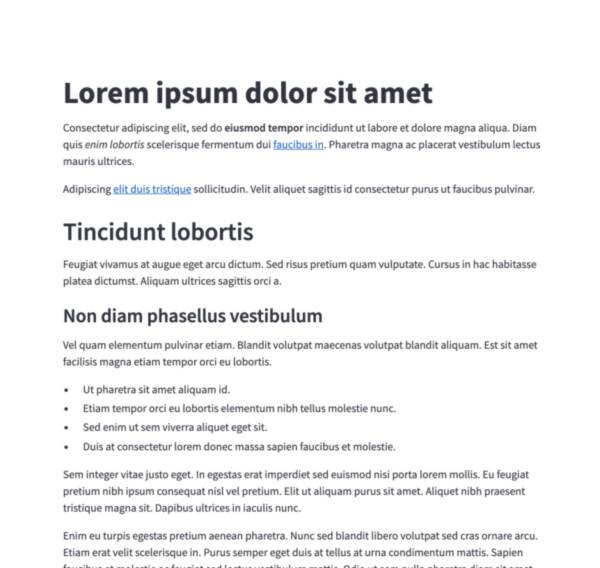
Display string formatted as Markdown.
Jt.markdown("Hello **world**!").use();

Title
Display text in title formatting.
Jt.title("The app title").use();
Header
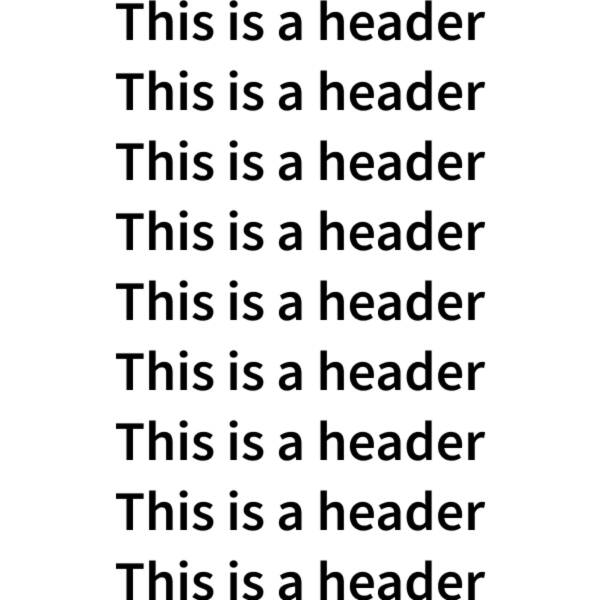
Display text in header formatting.
Jt.header("This is a header").use();
Subheader
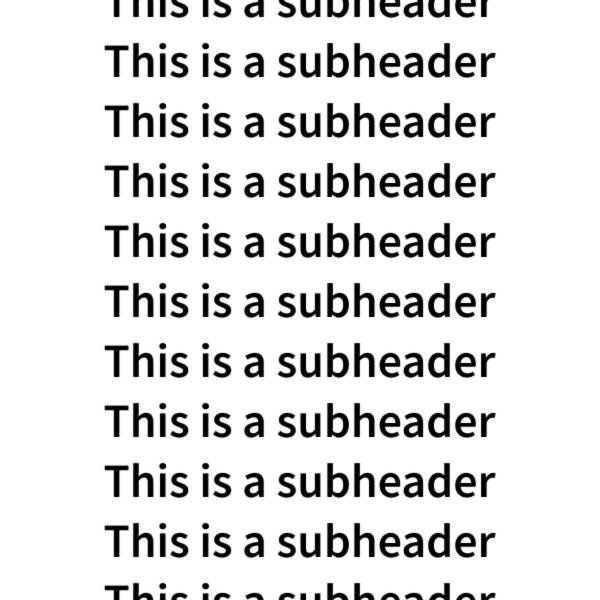
Display text in subheader formatting.
Jt.subheader("This is a subheader").use();
Code block
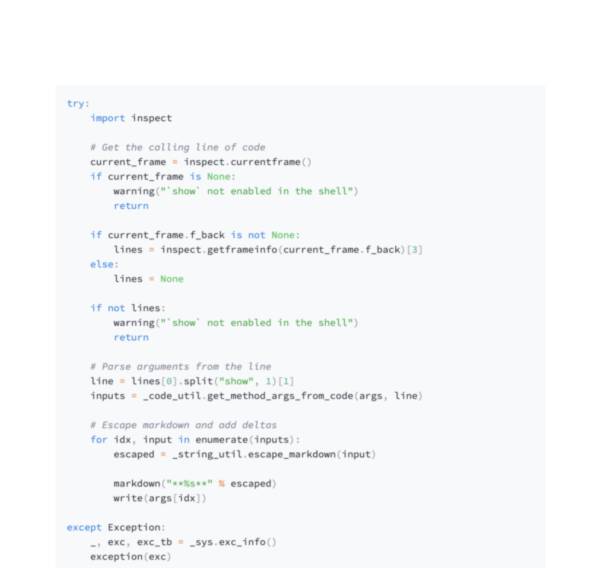
Display a code block with optional syntax highlighting.
Jt.code("a = 1234").use();
Preformatted text
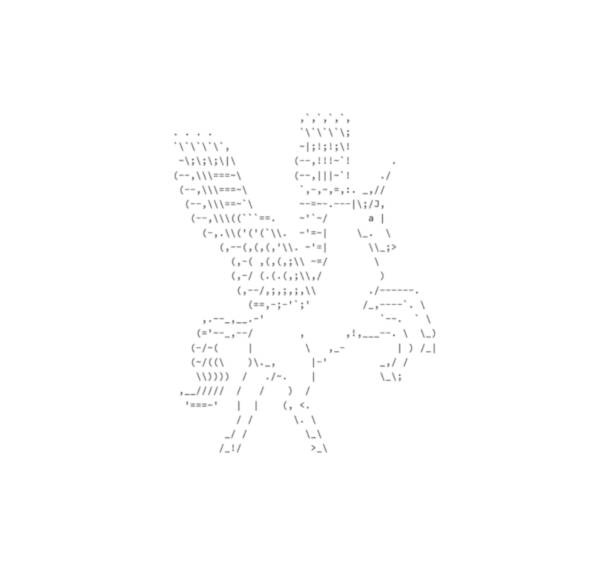
Write fixed-width and preformatted text.
Jt.text("Hello world").use();
Divider
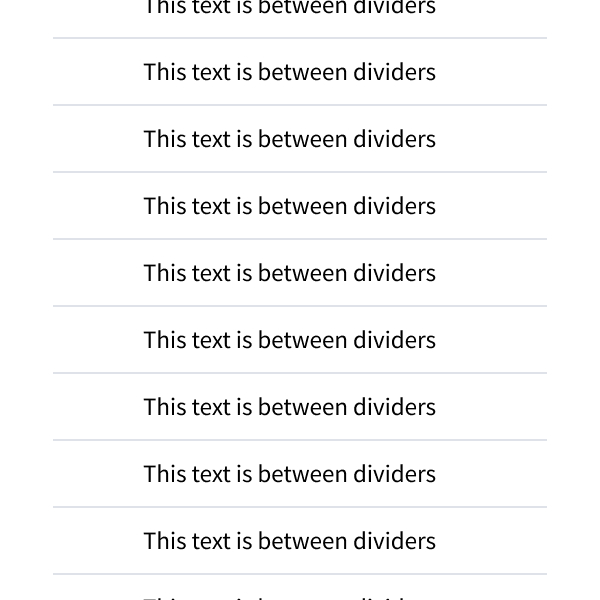
Display a horizontal rule.
Jt.divider("div-1").use();
Render HTML
Render an HTML string in your app.
Jt.html("<p>Foo bar.</p>").use();
Data elements
Static tables
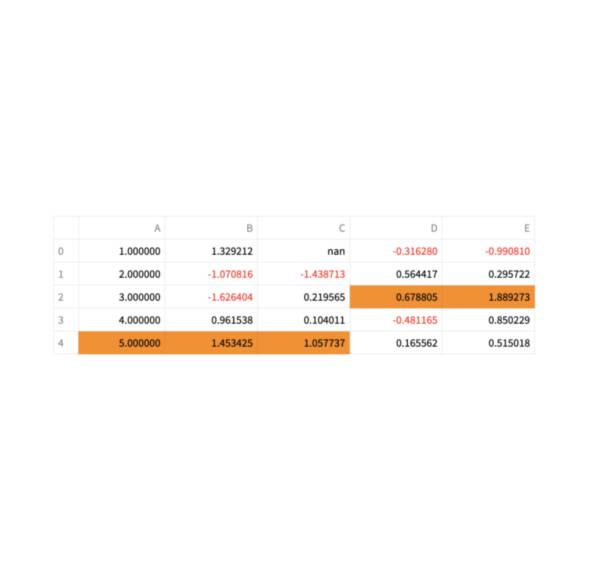
Display a static table.
Jt.table(my_data).use();
Chart elements
ECharts
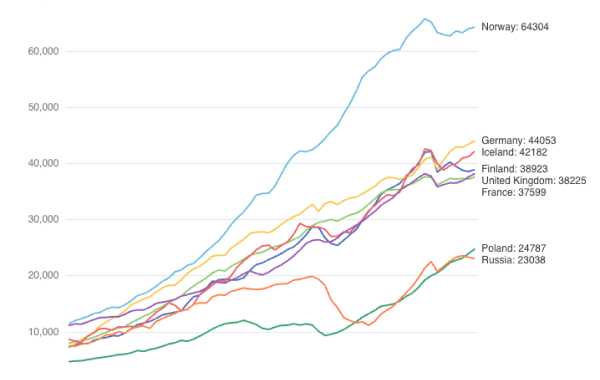
Display a chart using the Apache ECharts library.
Jt.echarts(myChartConfig).use();
Input widgets
Button
Display a button widget.
boolean clicked = Jt.button("Click me").use();
Form button
Display a form submit button. For use with Jt.form.
boolean submitted = Jt.formSubmitButton("Sign up").use();
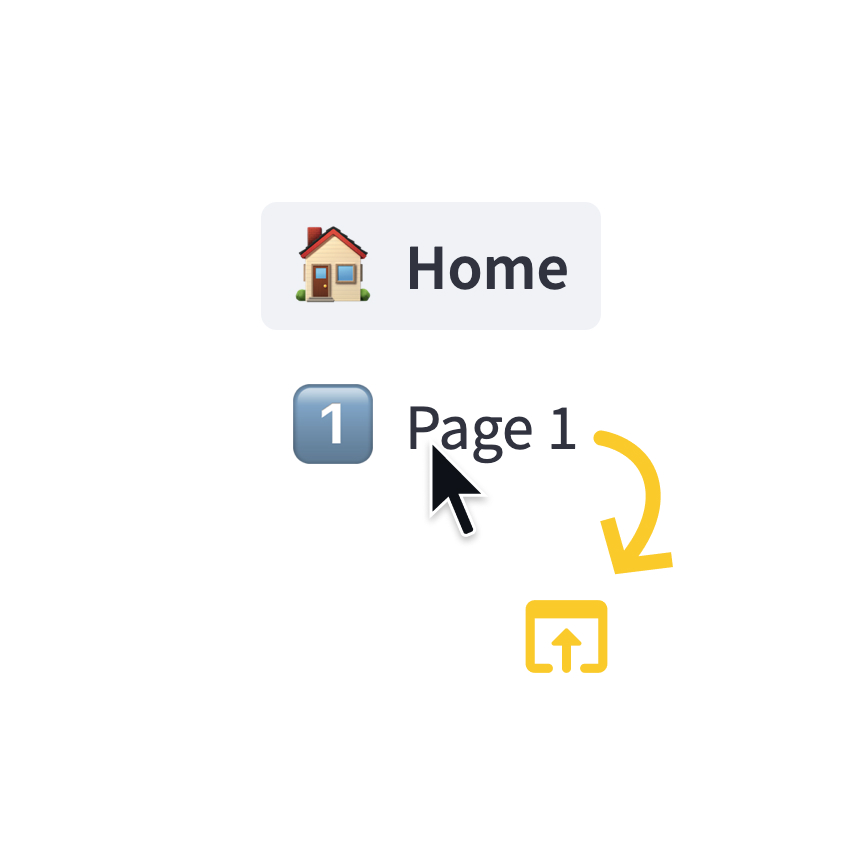
Page link
Display a link to another page in a multipage app.
Jt.pageLink("/dashboard").use();
Jt.pageLink("/users").label("See Users").use();

// external page
Jt.pageLink("https://github.com/javelit/javelit", "Github project").icon(":link:").use();
Checkbox
Display a checkbox widget.
boolean selected = Jt.checkbox("I agree").use();
Radio
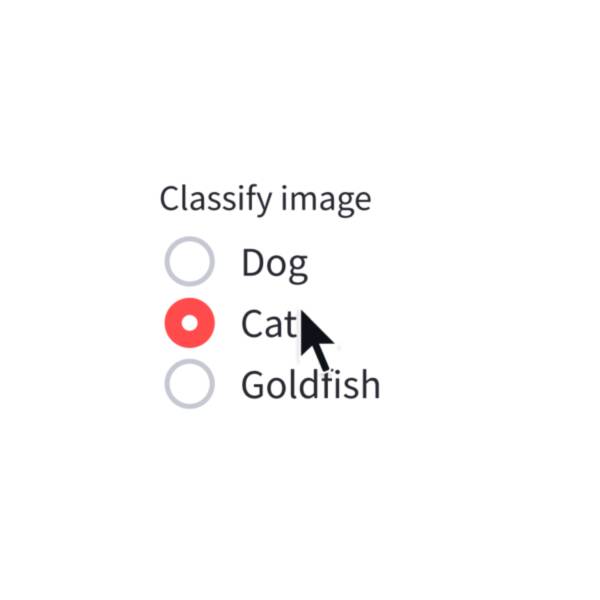
Display a radio button widget.
String choice = Jt.radio("Pick one", List.of("cats", "dogs")).use();
Selectbox
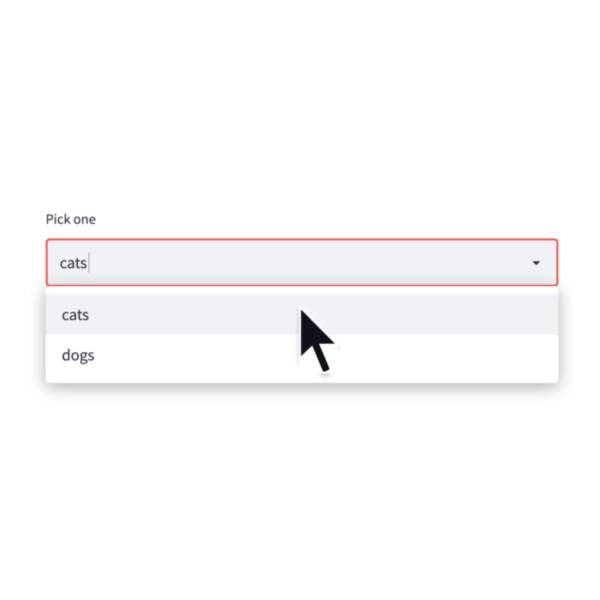
Display a select widget.
choice = st.selectbox("Pick one", ["cats", "dogs"])
Toggle
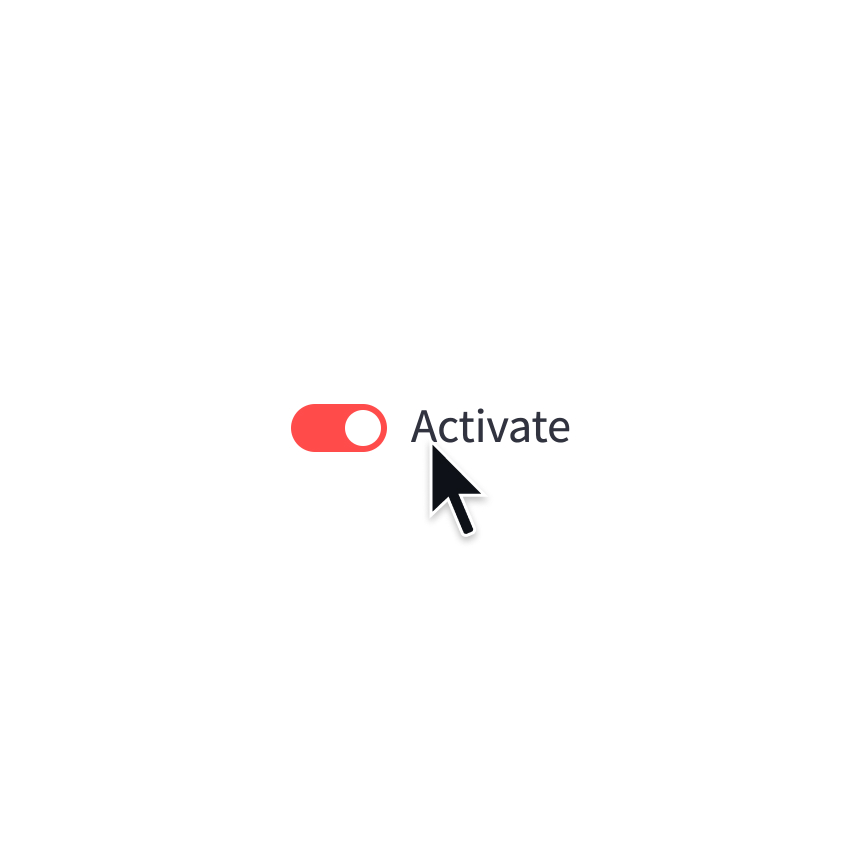
Display a toggle widget.
boolean activated = Jt.toggle("Activate").use();
Number input
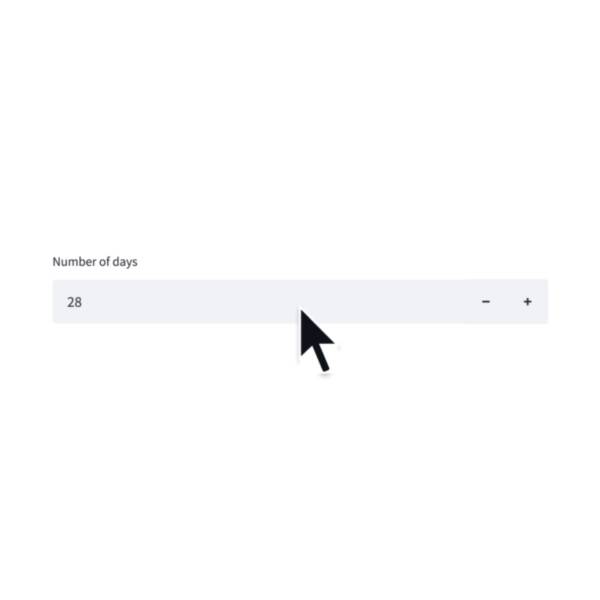
Display a numeric input widget.
Number choice = Jt.numberInput("Pick a number").use();
Slider
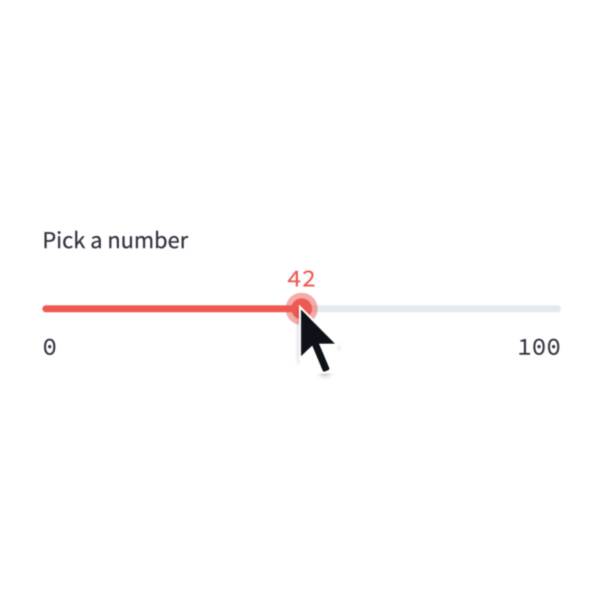
Display a slider widget.
int number = Jt.slider("Pick a number").use();
Date input
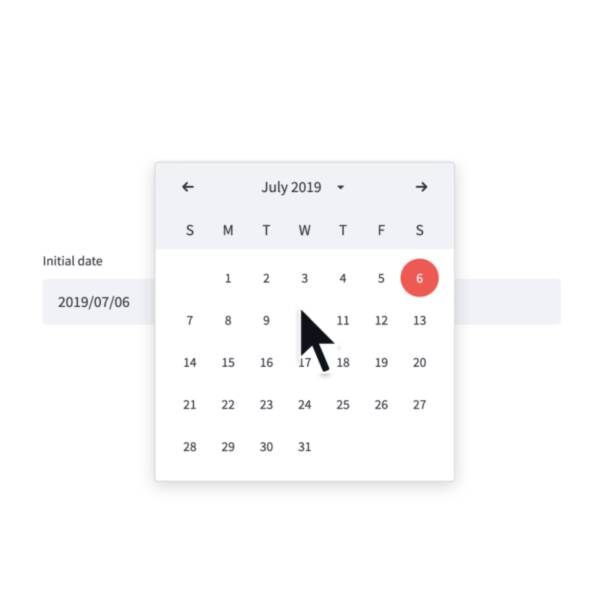
Display a date input widget.
LocalDate date = Jt.dateInput("Your birthday").use();
Text-area
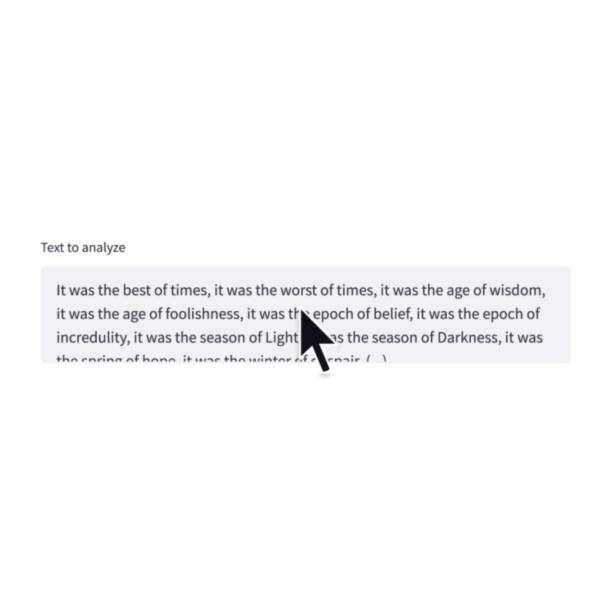
Display a multi-line text input widget.
String text = Jt.textArea("Text to translate").use();
Text input
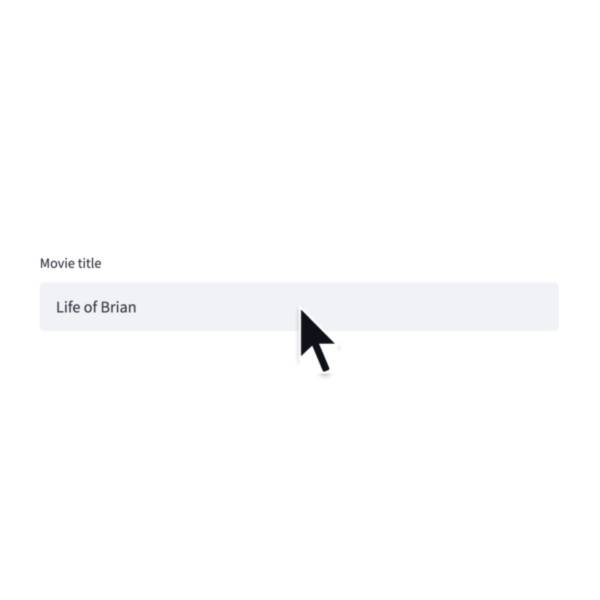
Display a single-line text input widget.
String name = Jt.textInput("First name").use();

Audio input
Display a widget that allows users to record with their microphone.
speech = Jt.audioInput("Record a voice message").use();
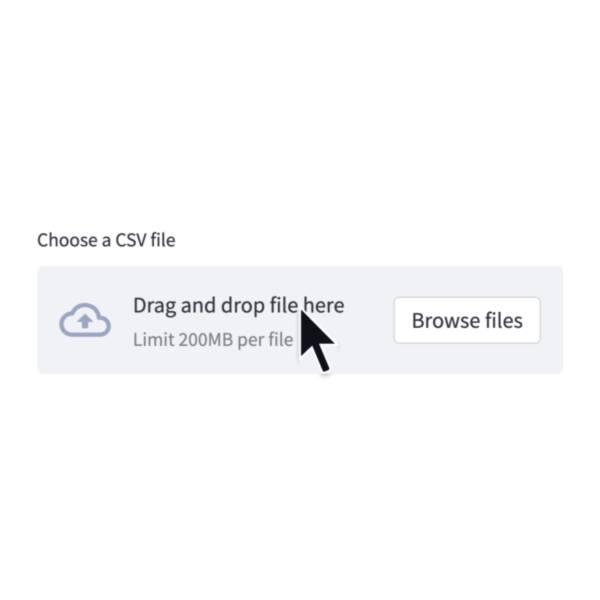
File uploader
Display a file uploader widget.
UploadedFile data = Jt.fileUploader("Upload a CSV").use();
Media elements

Image
Display an image or list of images.
Jt.image(byteArray).use();
Jt.image(Path.of("image.jpg")).use();
Jt.image("https://example.com/myimage.jpg").use();
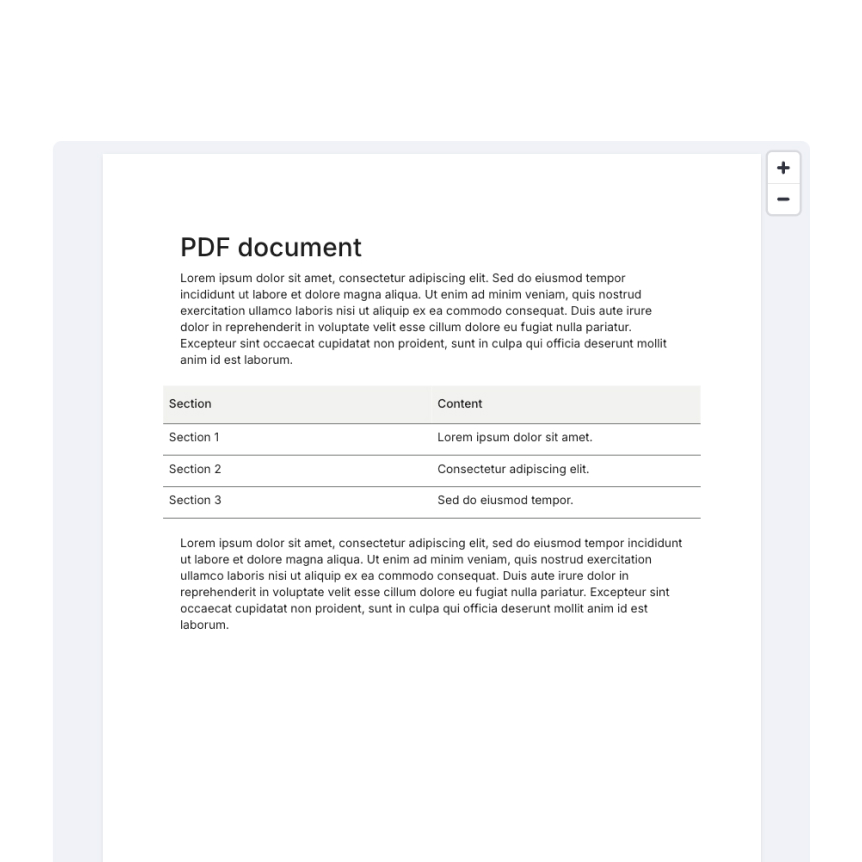
Display a PDF file.
Jt.pdf(byteArray).use();
Jt.pdf(Path.of("document.pdf")).use();
Jt.pdf("https://example.com/mydocument.pdf").use();

Audio
Display an audio player.
Jt.audio(byteArray).use();
Jt.audio(file).use();
Jt.audio("https://example.com/myaudio.mp3").use();
Layouts and containers
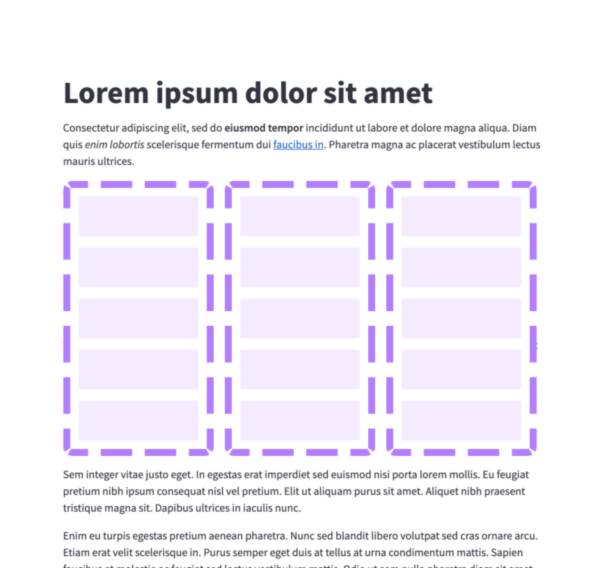
Columns
Insert containers laid out as side-by-side columns.
var cols = Jt.columns(2).use();
Jt.text("This is column 1").use(cols.col(0));
Jt.text("This is column 2").use(cols.col(1));
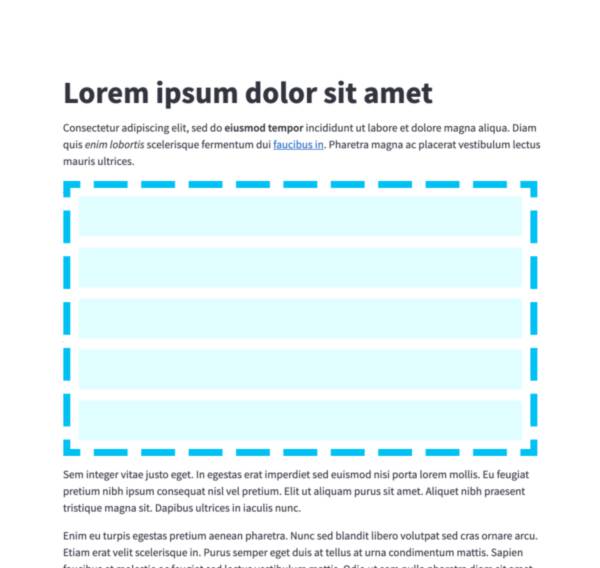
Container
Insert a multi-element container.
var c = Jt.container().use();
Jt.text("This will show last").use();
Jt.text("This will show first").use(c);
Jt.text("This will show second").use(c);
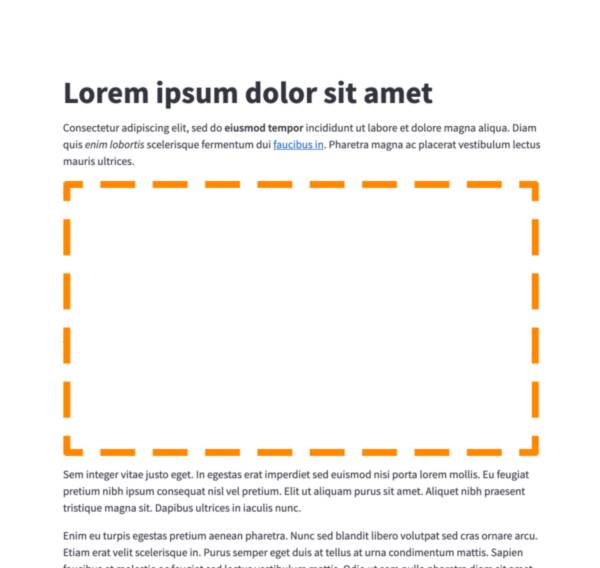
Empty
Insert a single-element container.
var e = Jt.empty("my-empty").use();
Jt.text("This will show last").use();
Jt.text("This will be replaced").use(e);
Jt.text("This will show first").use(e);
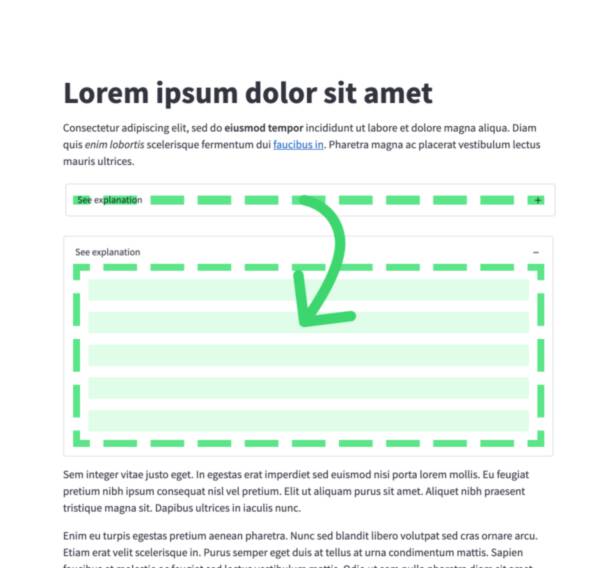
Expander
Insert a multi-element container that can be expanded/collapsed.
var exp = Jt.expander("Open to see more").use();
Jt.text("This is more content").use(exp);
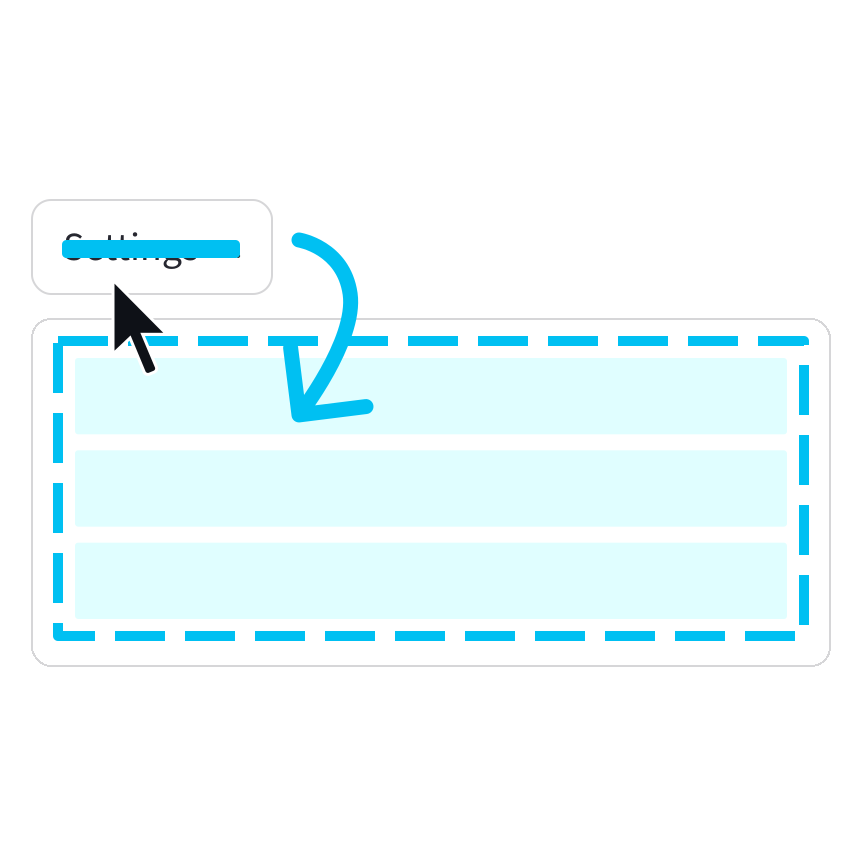
Popover
Insert a multi-element popover container that can be opened/closed.
var pop = Jt.popover("Settings").use();
Jt.checkbox("Show completed").use(pop);
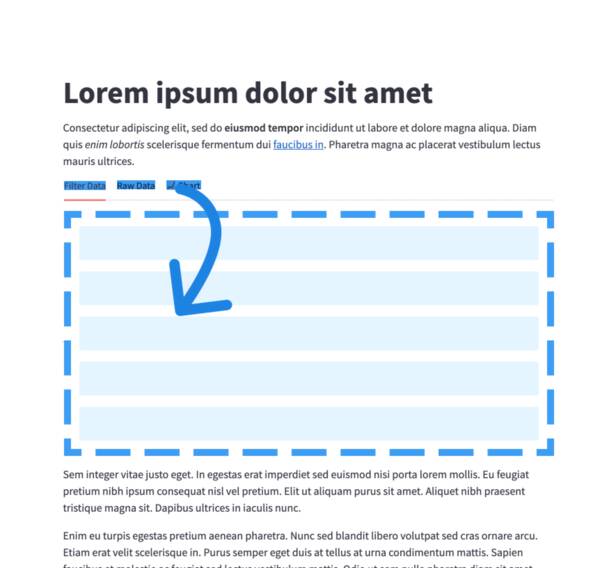
Tabs
Insert containers separated into tabs.
var tabs = Jt.tabs(List.of("Tab 1", "Tab 2")).use();
Jt.text("This is tab 1").use(tabs.tab(0));
Jt.text("This is tab 2").use(tabs.tab(1));
Status elements
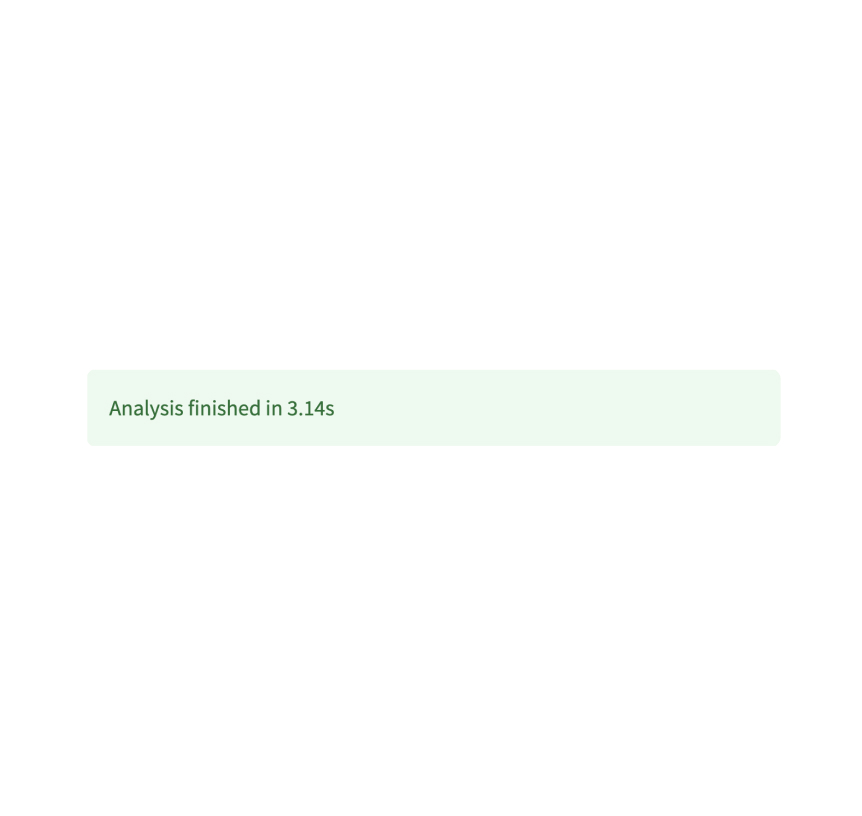
Success box
Display a success message.
Jt.success("Match found!").use();
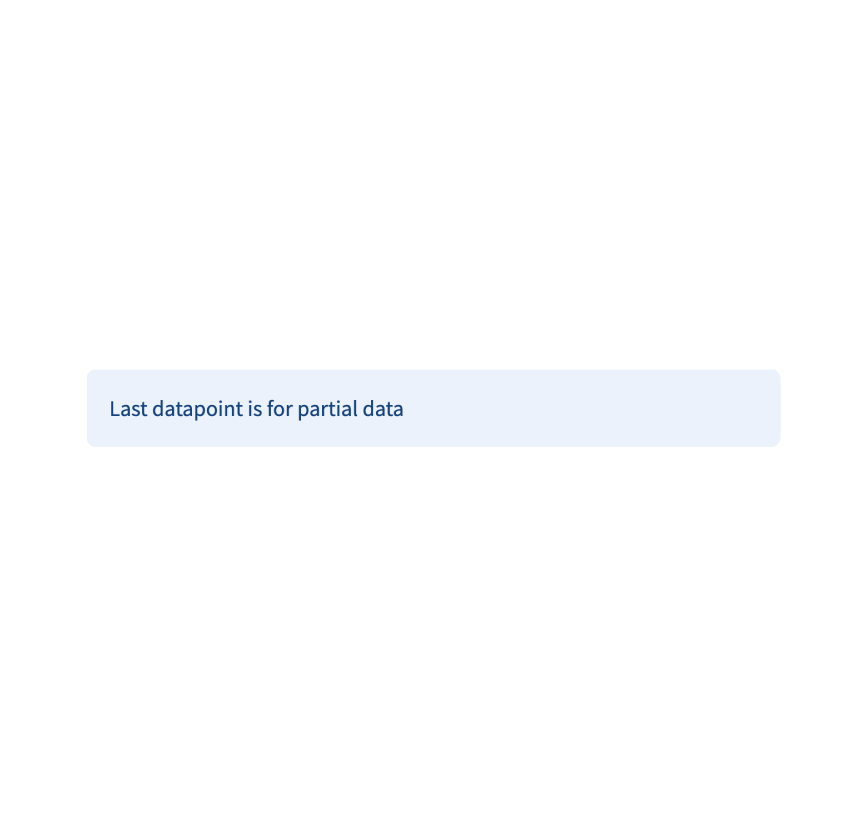
Info box
Display an informational message.
Jt.info("Dataset is updated every day at midnight.").use();
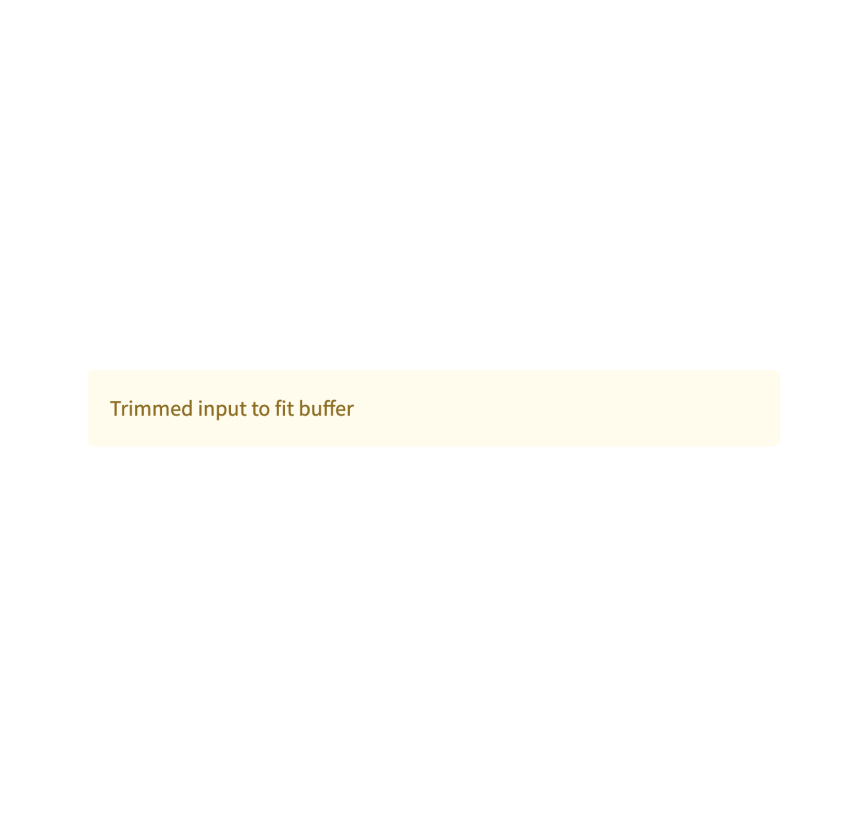
Warning box
Display warning message.
Jt.warning("Unable to fetch image. Skipping...").use();
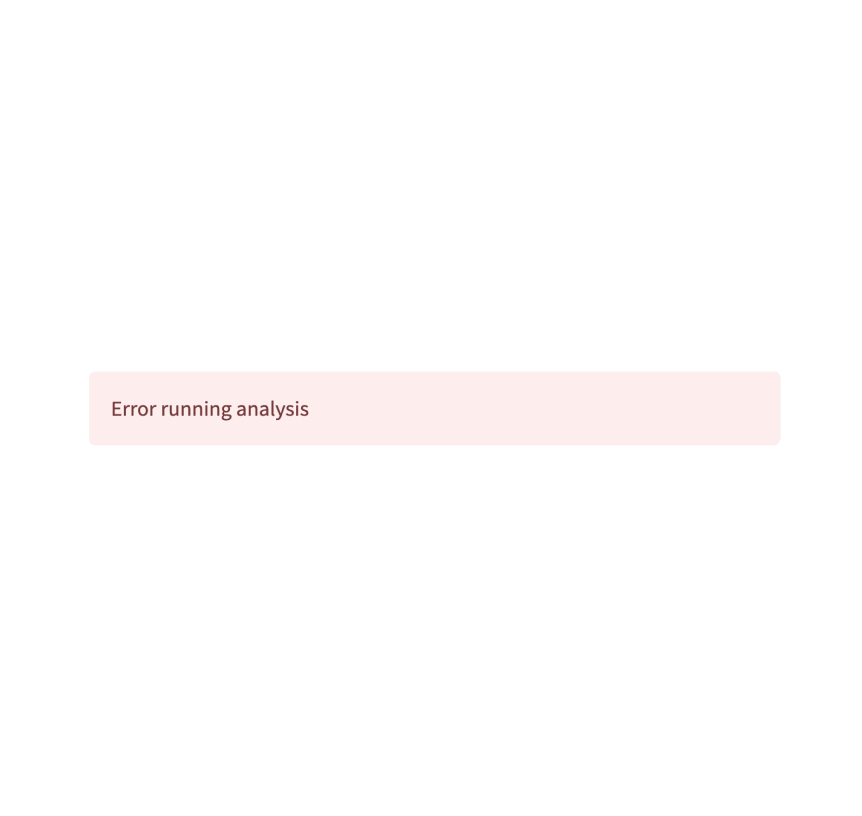
Error box
Display error message.
Jt.error("We encountered an error").use();
App logic and configuration
Navigation and pages
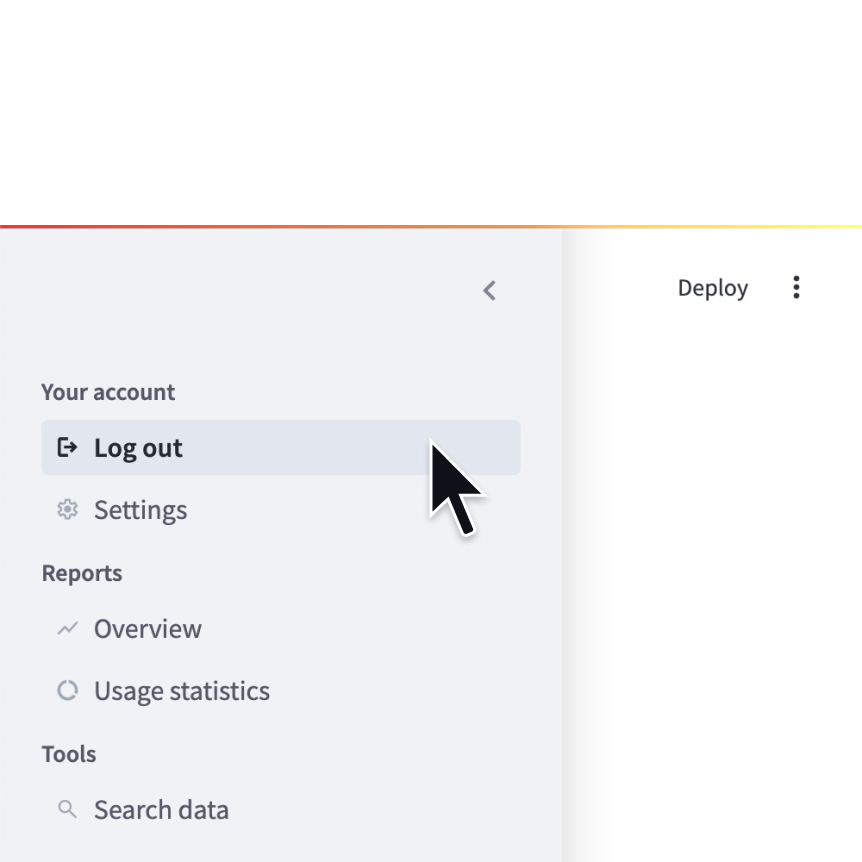
Navigation
Configure the available pages in a multipage app.
var currentPage =
        Jt.navigation(
            Jt.page("/dashboard", DashboardPage::app).title("Home").home(),
            Jt.page("/users", () -> users()).icon("👥"),
            Jt.page("/queries", () -> {Jt.title("Queries").use(); ...}))
        .use();

currentPage.run();
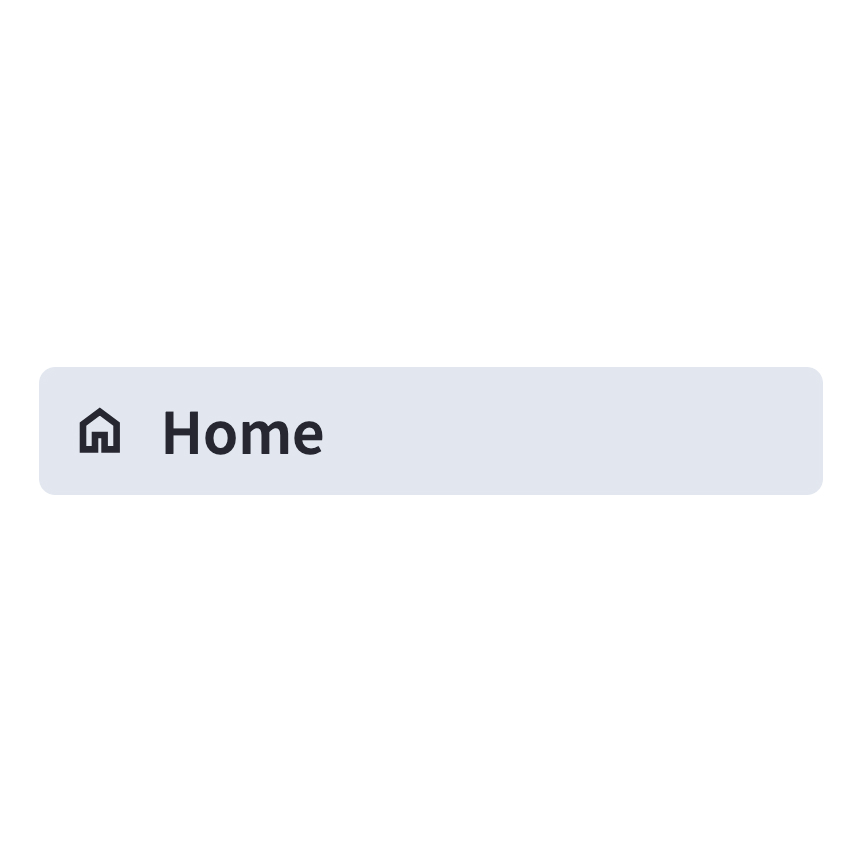
Page
Define a page in a multipage app.
Jt.page("/settings", () -> settings())
        .title("Settings")
        .icon(":settings:");
Page link
Display a link to another page in a multipage app.
Jt.pageLink("/dashboard").use();
Jt.pageLink("/users").label("See Users").use();

// external page
Jt.pageLink("https://github.com/javelit/javelit", "Github project").icon(":link:").use();
Switch page
Programmatically navigates to a specified page.
Jt.switchPage("/users");

// go home
Jt.switchPage(null);
Execution flow
Forms
Create a form that batches elements together with a "Submit" button.
var form = Jt.form().use();
String name = Jt.textInput("Name").use(form);
String email = Jt.textInput("Email").use(form);
boolean submitted = Jt.formSubmitButton("Sign up").use(form);
Rerun script
Rerun the script immediately.
Jt.rerun()
Custom Components
HTML
Render an HTML string in your app.
Jt.html("<p>Foo bar.</p>").use();
Developer tools
App testing
App Testing
Learn how to test your Javelit applications with unit tests, integration tests, and automated testing frameworks. Ensure your apps work correctly across different scenarios and user interactions.
@Test
public void testButtonIsVisible() {
    PlaywrightUtils.runInSharedBrowser(testInfo, app, page -> {
        assertThat(page.locator("jt-button").first()).isVisible(WAIT_1_SEC_MAX);
    });
}
Still have questions?
Go to our discussions forum for helpful information and advice from Javelit experts.